Barbie Styling StudioAI · Claude 3.5
Game information
AI generation prompt
Core Game Loop and Mechanics
MapleStory Avatar Studio is a character customization experience that captures the beloved dress-up aspect of MapleStory. Players create and style their own unique character by mixing and matching clothing, hairstyles, accessories, and more.
Core Loop:
- Player starts with a base character model in underwear/basic outfit
- Player browses through categorized wardrobe options (tops, bottoms, shoes, hair, face, accessories)
- Player taps items to equip them on their character
- Character updates in real-time to show the new look
- Player can save their favorite looks and create new ones
- Player can cycle through different poses/expressions for their character
What Makes It Engaging:
- Instant visual feedback as items are equipped
- Vast combination possibilities create unique personal expression
- Nostalgic MapleStory aesthetic appeals to fans
- Low-pressure creative sandbox with no fail state
- Satisfying to experiment and discover new combinations
Game Perspective
Fixed-screen with a centered character display. The character model occupies the center of the screen while UI panels for item selection appear around the edges. This allows players to see their full character while browsing options.
Game World and Level Design
The game takes place in a single screen divided into functional zones:
Character Display Area (Center):
- Large, prominent character model showing the current outfit
- Character stands on a simple platform/ground
- Background can be toggled between different MapleStory-themed scenes (Henesys, Ellinia, etc.)
Category Navigation (Left Side):
- Vertical list of wardrobe categories with icons
- Categories: Hair, Face, Top, Bottom, Shoes, Weapon, Cape, Hat, Overall (one-piece outfits)
- Tapping a category opens its item grid
Item Selection Panel (Right Side/Bottom):
- Grid of thumbnail previews for items in the selected category
- Scrollable to accommodate many items
- Each item shows a small preview icon
- Currently equipped item is highlighted
Action Bar (Top):
- "New Look" button (clears all items, resets to base)
- "Random" button (equips random items from each category)
- Background selector dropdown
- Pose/expression selector
Edit Mode Design
Edit mode allows creators to customize the wardrobe and game experience:
Editable Properties:
- Item Collections: Add/remove items in each category, upload custom item sprites
- Color Palettes: Adjust skin tones, base colors available for character
- Background Options: Add/remove background scene options
- UI Theme: Adjust panel colors, button styles to match desired aesthetic
- Starting Outfit: Set which items the character starts with
- Category Names: Rename categories to fit different themes (e.g., "Armor" instead of "Top")
Constraints:
- Minimum 3 items per category to ensure variety
- Item sprites must be transparent PNGs sized appropriately for the character model
- At least one background option must be available
Control Design
Mobile (Touch - Primary):
- Tap category button → Opens that category's item grid
- Tap item thumbnail → Equips that item on character
- Tap equipped item again → Unequips it (returns to base/underwear for that slot)
- Swipe on item grid → Scroll through available items
- Tap action buttons → Execute actions (New Look, Random, etc.)
- Tap background/pose selectors → Open dropdown menus
Desktop (Mouse/Keyboard):
- Click category button → Opens that category's item grid
- Click item thumbnail → Equips that item on character
- Click equipped item again → Unequips it
- Mouse wheel on item grid → Scroll through items
- Click action buttons → Execute actions
- Number keys 1-9 → Quick-select categories
- Arrow keys → Navigate through items in current category
- Enter/Space → Equip highlighted item
- Escape → Clear current category selection
All controls are designed for easy one-handed mobile use with large touch targets (minimum 96x96px).
Win/Lose Conditions
This is a creative sandbox with no traditional win/lose conditions. Success is defined by player satisfaction with their created look. The game encourages experimentation and personal expression without pressure or failure states.
Engagement Hooks:
- Discovering new item combinations
- Creating themed outfits (warrior, mage, thief, etc.)
- Recreating favorite MapleStory characters
- Designing original characters
Art Style and Visual Theme
Art Style: Authentic MapleStory-inspired 2D sprite art with a charming, colorful anime aesthetic. Characters should have the distinctive chibi proportions and vibrant style that MapleStory is known for.
Visual Theme:
- Bright, saturated colors typical of MapleStory
- Clean UI with rounded corners and soft shadows
- Item thumbnails clearly show what each piece looks like
- Character sprites should be large enough to see details (approximately 300-400px tall)
- Backgrounds feature iconic MapleStory locations with soft, painterly style
Asset Specifications:
- Character Base: Chibi-style character with large head, small body proportions
- Clothing Layers: Each item is a separate sprite that overlays on the base character
- Consistent Scale: All items must match the character's proportions
- Transparent Backgrounds: All character and item sprites use transparency
- UI Elements: Soft, rounded panels with subtle gradients matching MapleStory's friendly aesthetic
Color Palette:
- Warm, inviting colors for UI (soft blues, gentle purples, warm yellows)
- High contrast for readability
- Consistent with MapleStory's vibrant, optimistic tone
Related games
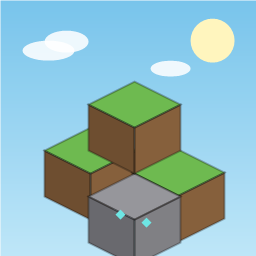
3D voxel sandbox game powered by Three.js. Explorable 128x128x64 procedural world (value-noise hills, lakes, trees, minerals, bedrock). Build and dig 9 block types, physics with AABB collisions, flying mode, day/night cycles, ambient music, and auto-saving.
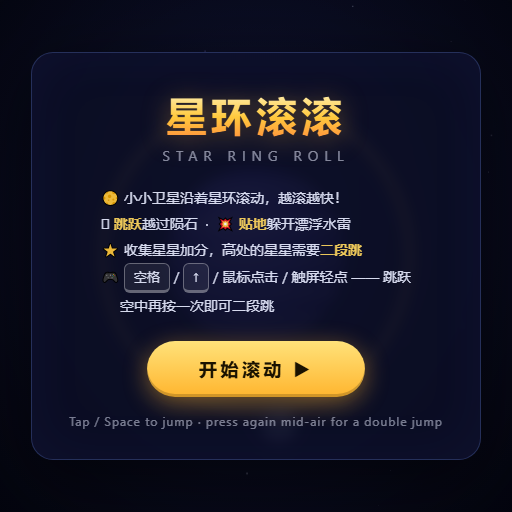
Dodge and weave through rotating planetary rings, fitting through gaps to survive as speed increases.
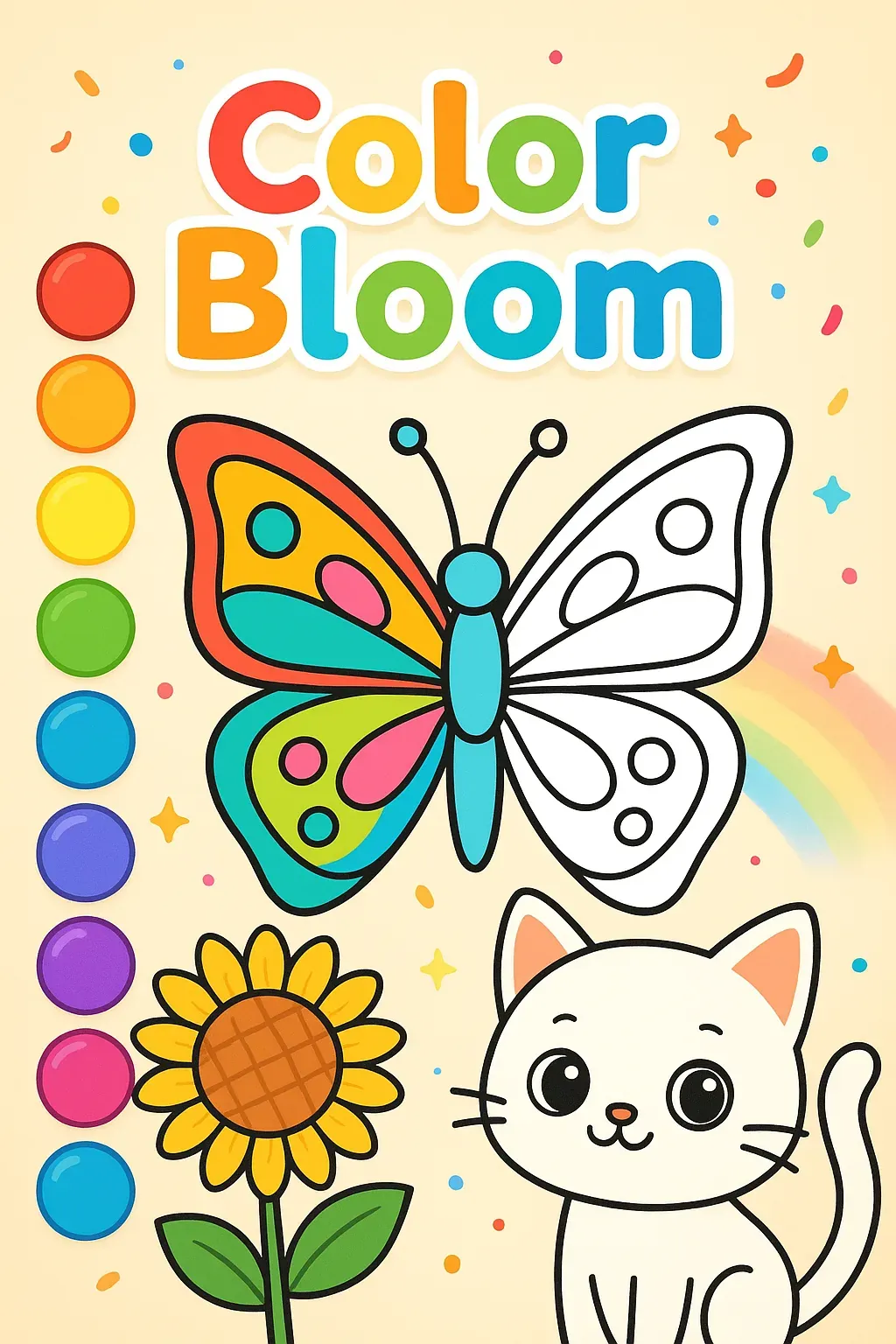
Tap colors and paint adorable animals and flowers! Perfect creative fun for young artists.
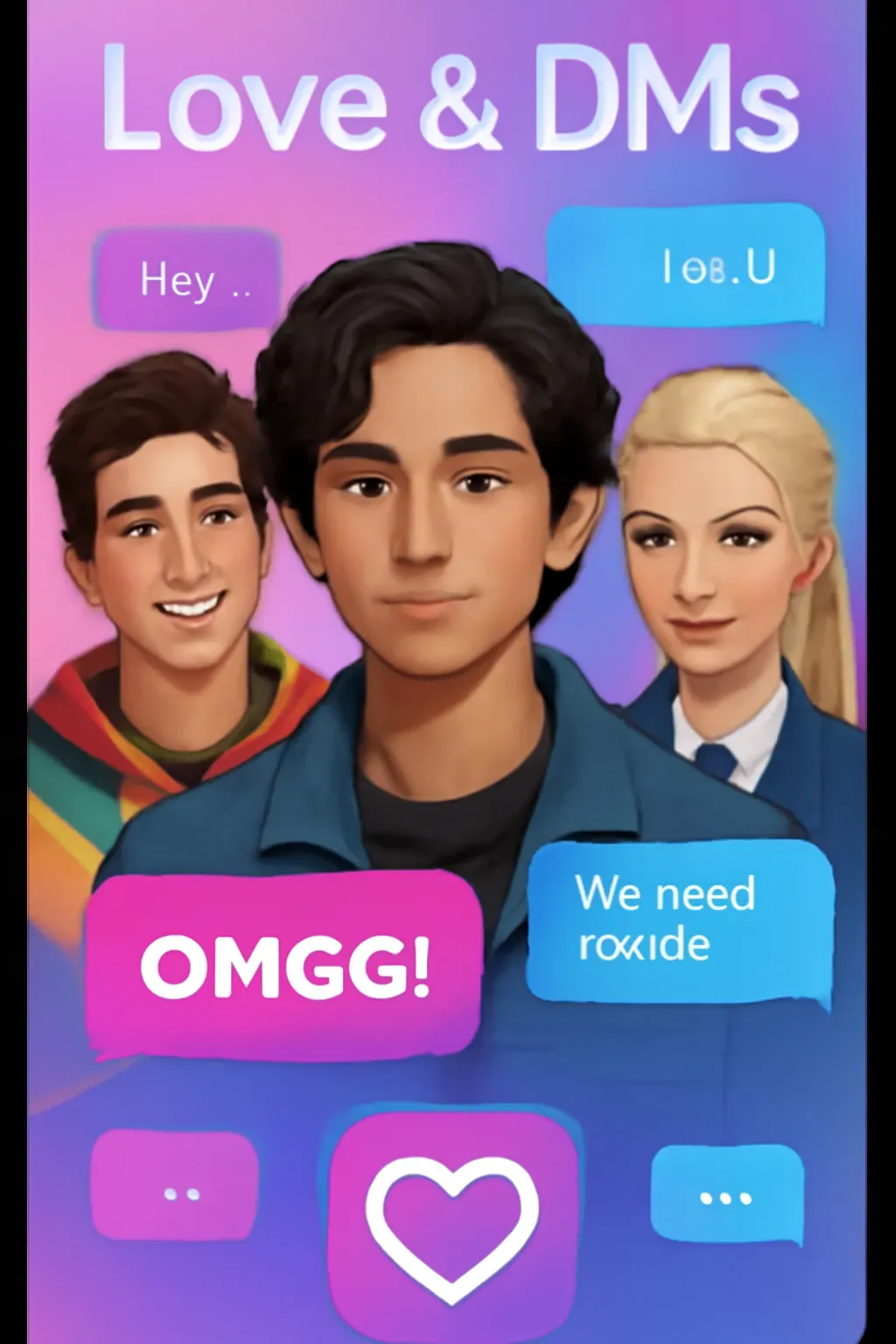
Navigate high school drama through a messaging app where your chat choices shape friendships, spark romance, and create unforgettable stories.
A full-featured chess game with complete rules, offering multiple AI difficulty levels, local two-player mode, and online multiplayer for a professional, smooth experience.